For the past thirteen years, I’d been keeping track of my flights on Flight Historian, a Ruby on Rails web application that I wrote. But my flight log was getting complicated, especially compared to my offline-only driving and lodging logs.1
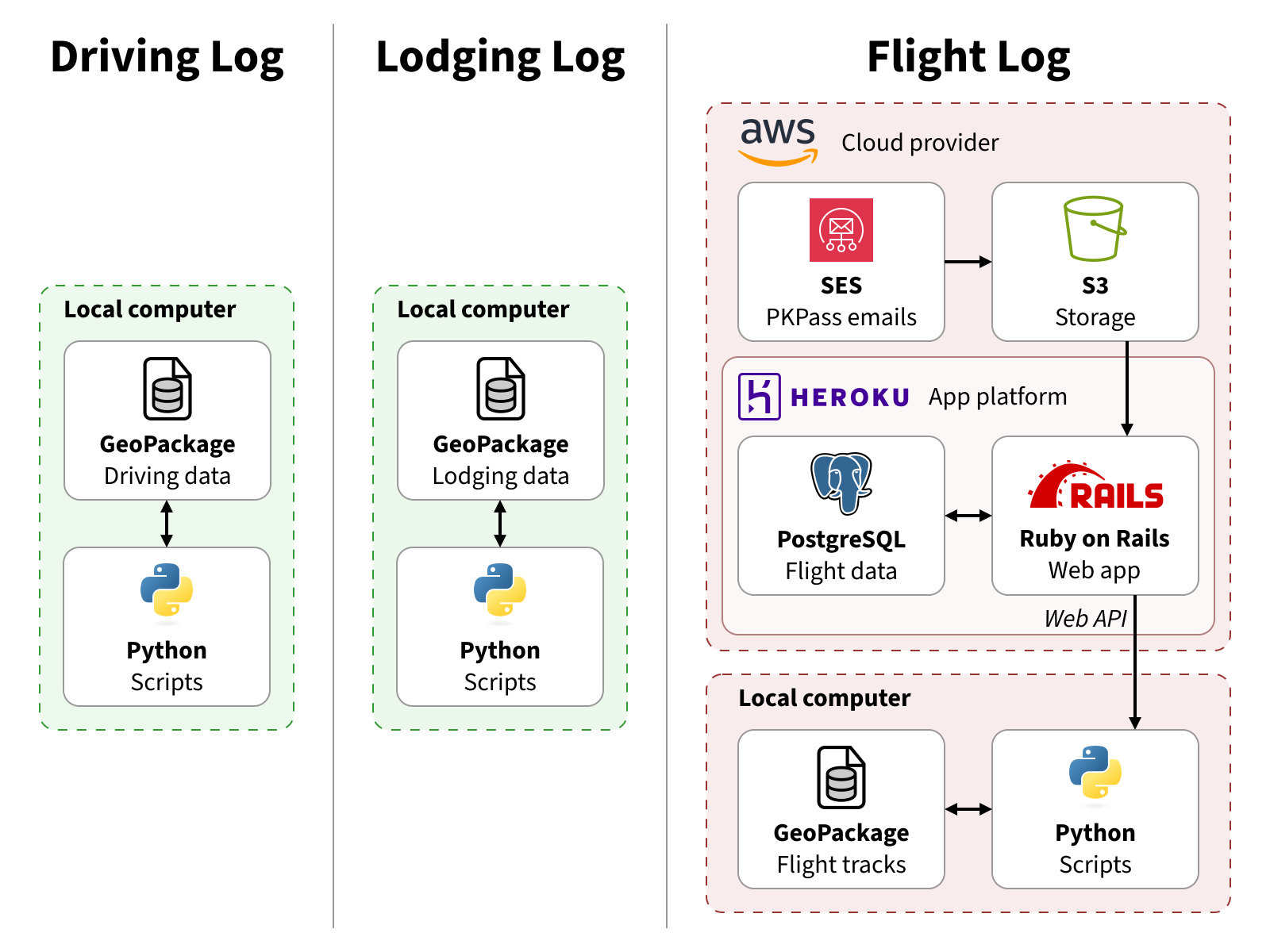
Travel Log Structure (Before Changes, January 2026)
I’d originally started the flight log to teach myself Ruby on Rails, so it was an online Rails app with a PostgreSQL database as part of my personal website. By early 2016, I’d split it off into its own website and hosted it on Heroku. Shortly thereafter, I added the ability to read digital boarding passes from an IMAP server, which I eventually had to move to an AWS and S3 solution.
Meanwhile, for some of my Year in Travel posts, I’d created a small Python script to download FlightAware (AeroAPI) flight tracks into a local GeoPackage file. Although I could have had Rails fetch the tracks and store them in PostgreSQL, nearly all of my other Year in Travel data was offline, so it was easier to just keep that offline too. For what little Flight Historian data I did need to add to Year in Travel, I’d ended up having to write a JSON API.
With this all, I now had flight data in two places, my own API, and multiple cloud accounts. The benefits of having my flight data on a website were beginning to lose out to the drawbacks of having my data in multiple places, and I was starting to casually consider what it would look like to bring all of my flight data offline.
Then, in 2026, my host Heroku announced it was going to go end-of-life. Rather than re-host Flight Historian somewhere else, I decided it was finally time to convert my flight log to a local GeoPackage.
Table of Contents
Designing the Data Structure
Flight Historian already consisted of relational data in PostgreSQL: flights, aircraft families, airlines, airports, routes, trips, users, and PKPasses. Since a GeoPackage file is a SQLite database file, it’d also function as a relational database, and I could carry over a lot of the structure.
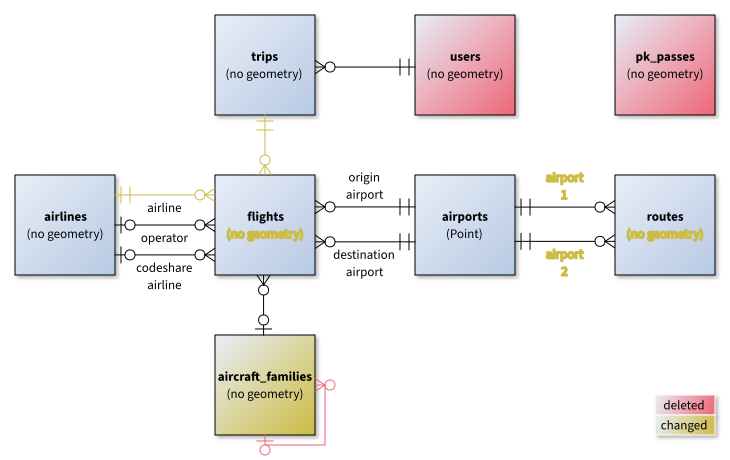
Flight Historian Entity Relationship Diagram
I did, however, decide to make some updates for the new format.
Deletions
I recognized that a local flight log wouldn’t need the users or pk_passes table.
The users table existed to store my login credentials for Flight Historian, as I was the only user.2 As a file on my local computer, my GeoPackage flight log wouldn’t need a login.
The PKPasses table temporarily held boarding passes my old Rails app had pulled from S3, so that I could choose to import them as a flight. Local Python scripts would be able to work with local .pkpass files directly.
Changes
Flights in flight historian didn’t store their track geometry (the actual route that they flew); instead, my maps just looked at the location of the origin and destination airports and drew a great circle route between them. The flight GeoPackage, however, did store actual flight tracks from FlightAware’s AeroAPI, as well as the raw JSON flight info that AeroAPI returned. I wanted to keep this flight geometry and info going forward, so the flights layer of the new flight log would store a MultiLineString geometry. (I selected MultiLineString over LineString so I could split the geometry at 180° longitude, as crossing this antimeridian can cause problems in mapping software.)
Since flight track geometry is not available for all of my flights (especially older or non-airline flights), I didn’t want to lose the great circle routes. In Flight Historian, the routes table only stored distances, and treated routes as bidirectional (for example, I just stored a single route record for DFW ⇔ ORD instead of a record for DFW ⇒ ORD and a record for ORD ⇒ DFW). For the GeoPackage, routes would contain the MultiLineString geometry for great circle routes,3 so I went ahead and made the routes directional. This meant that the relationship from airports to routes went from just having two airports to having specific origin and destination airports.
In Flight Historian, aircraft_families linked to itself, so I could specify aircraft families (e.g. Boeing 737) and variants of those aircraft families (e.g. Boeing 737-800) in a parent-child relationship in the same table. In most cases, I would set a flight’s aircraft_family_id to the specific variant, but if I didn’t know what variant I flew on an older flight, I could just set it to the parent family. In practice, it ended up being unnecessary; I was eventually able to figure out the variant for every flight in Flight Historian. For my GeoPackage, I decided to make an aircraft_types table that only contained the variants, and simply have a string family field for grouping.
I’d decided I’d keep some of my general aviation flights in the GeoPackage, but that meant that I had some flights that didn’t belong to a trip. While this would have been a problem on Flight Historian (flights were linked to users through trips), it wasn’t a concern in the single-user GeoPackage. Likewise, general aviation flights wouldn’t necessarily have an airline. I went ahead and made the trip and airline relationships optional for flights.
Additions
I realized I needed to add a classes table. Since Flight Historian only recognized five travel classes, I was able to embed their key/value pairs in a Ruby module and store the keys in the flight records, rather than creating a whole classes table (though in retrospect, I probably should have just created a table). My local flight log would be viewed with QGIS most of the time, and QGIS can translate relational keys to dropdown values in table views, so it would be easiest to just have classes be another table.
GeoPackage Schema
I thus came up with the following GeoPackage schema:
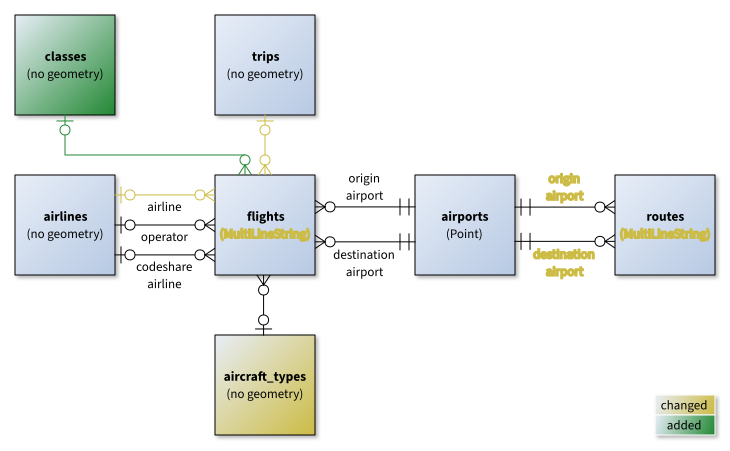
GeoPackage Entity Relationship Diagram
Details can be found on the Schema page.
Migrating My Flight Data
My first step was getting all of my Flight Historian data on my local computer. Although I had PostgreSQL .dump files from my periodic backups of my flight data, it was honestly easier to just log into the rails console on heroku (heroku run rails console) and export all records of each of my models to CSV files.
I already had a GeoPackage layer with a single flight_tracks layer, containing the AeroAPI geometry and flight info JSON from many of my recent flights, as well as an fh_id field which told me which Flight Historian flight ID this info matched. I renamed that layer to flights and set up its fields according to the schema.
I created layers for aircraft_types, airlines, airports, classes, and trips, then imported the data from the CSV files into each of these layers. I also created a routes layer, but did not import any data into it; the only data it held in Flight Historian was the route distance, and the route distances (and geometries) were going to be generated by Python.
Finally, I needed to handle the flights layer.
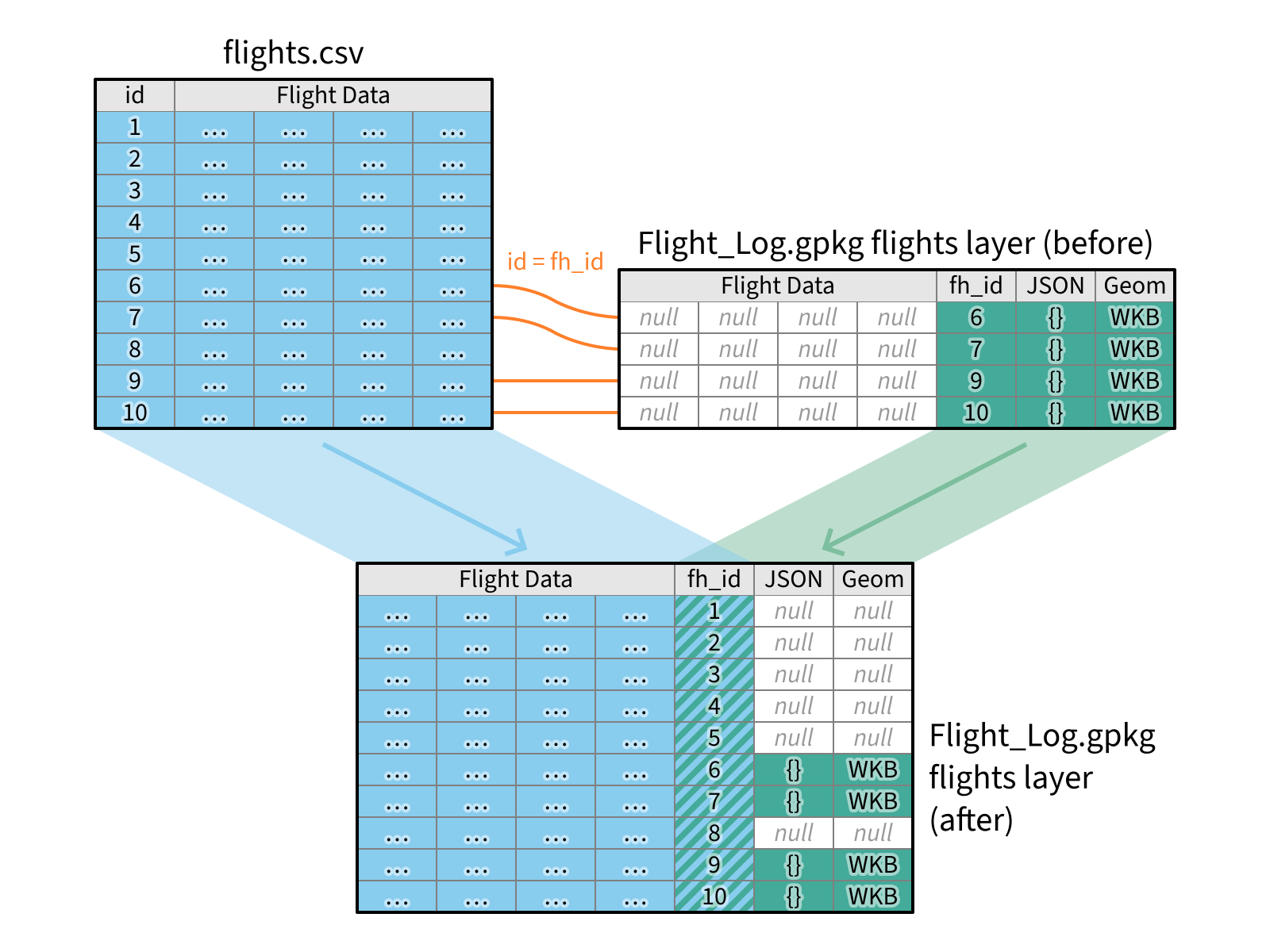
Flight Data Join
All of the records that were already in the GeoPackage flights layer represented a flight in the Flight Historian CSV file (where the CSV id matched the GeoPackage fh_id), but not every Flight Historian flight already had a record on the flights layer (since I only had geometry for a subset of my flights). The GeoPackage layer contained AeroAPI JSON results and flight track geometry in Well-Known Binary (WKB) format, and null values for all other flight data. The CSV file had all of my flight data except AeroAPI JSON and geometry.
I ended up writing a throwaway Python script which left joined the GeoPackage layer’s JSON and geometry into the Flight Historian CSV data (leaving JSON and geometry null for CSV flights without a matching GeoPackage record).
Once this data was joined in memory, the script had to update IDs for the relationships between the flights layer and other layers (aircraft types, airlines, airports, and trips). When I imported the CSV data into the other layers, the primary keys changed, so I had to include a mapping between CSV id values and GeoPackage fid values for each layer’s table. Fortunately, my aircraft types, airlines, and airports all had unique ICAO codes,4 and my trips table had unique start dates, so generating this mapping was easy. Likewise, the classes table hadn’t existed before, so my script had to map the CSV class strings (economy, business, etc.) into fids from the new layer table. Since there were only five classes, I just manually created this mapping.
Once all the relational identifiers were remapped, the script overwrote the existing GeoPackage flight layer with the merged and remapped data.
For a final sanity check, I ran an SQL query on Flight Historian that would join ICAO values from airlines/airports/aircraft and trip start dates from trips into the flights table, then ran a similar query for the GeoPackage. These two queries were set up so they would return the same columns, and if my migration was successful, the results from the two queries should be identical. I used Python to load the two result sets into Pandas, then used the DataFrame.compare method to verify the results were identical, which they were. Success!
Setting up Boarding Pass Transfers
On Flight Historian, I’d set up an AWS pipeline where I shared my Apple Wallet digital boarding passes (PKPass files) to an SES email address, and the passes were stored in an S3 bucket for my Ruby on Rails app to read. With a local Python script now importing my PKPasses, I needed a way to get them off of my iPhone and onto my computer.5
For my driving log, I’d already set up a ~/Dropbox/Import folder. With the Dropbox app installed on my phone, I could share GPX track files to Dropbox, making it easy for Python scripts on my computer to import them. I initially thought I’d use the same folder for my PKPass files, but the Wallet app for some reason doesn’t support sharing to Dropbox.
Since I knew Wallet supported sharing via email, I instead set up the Email to Dropbox feature in my Dropbox settings. This lets me email boarding passes to a custom email address, which Dropbox then puts in a ~/Dropbox/Email Attachments folder that my Python scripts can read.
Creating a Python Module
I’d already written a Python script to connect to the Flight Historian API, get my recent flights, get flight info and track geometry from AeroAPI, and save that to a GeoPackage layer. It was a starting point for interacting with AeroAPI, but I needed more functionality.
 GitHub:
 I created a Python module (so I could run it from any directory in the terminal with pbflightlog). For now, my primary need for this module was to add flights, so I created a subcommand for add with a further subcommand for flight, ultimately giving me a pbflightlog add flight command. (With this structure, I could create more subcommands later to add things like airports or airlines, or to do things other than add.)
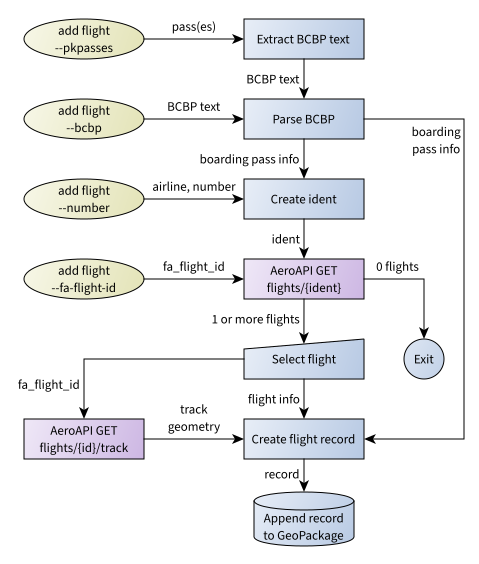
Data Flow for Add Flight
The ultimate goal of the add flight command is to find info and geometry for a particular flight on AeroAPI, use the results to create a flight record, and save it in my flight log GeoPackage. The simplest way to reference an AeroAPI is to use AeroAPI’s unique flight identifier, fa_flight_id. So my first step was to create an option for directly providing an fa_flight_id:
pbflightlog add flight --fa-flight-id FA_FLIGHT_ID
pbflightlog add flight --fa-flight-id UAL1234-1234567890-airline-0123
In this case, I provided the fa_flight_id as an ident to AeroAPI’s GET flights/{ident} endpoint. However, on AeroAPI, an ident can also be things like a tail number (e.g. N909EV) or an airline code and flight number (e.g. AAL1234 for American Airlines flight 1234). I created an option to let me provide an airline and flight number:
pbflightlog add flight --number AIRLINE_CODE FLIGHT_NUMBER
pbflightlog add flight --number AAL 1234
When add flight receives this option, it joins the airline code and flight number into a single string, converting the airline code to an ICAO code (using data from my airlines layer) when possible since AeroAPI prefers ICAO. It then passes this to AeroAPI and runs the rest of the process with the result. (Since the flight info contains its fa_flight_id, the script can pass the fa_flight_id to GET flights/{id}/track.)
Since more than one flight can match a given flight number (the same flight on different days, or even in some cases the same flight in the reverse direction on the same day), AeroAPI may return more than one result. When that happens, the script brings up a list of matching flights and lets me select the correct one. If only one flight is returned, that one flight is automatically used.
While being able to look up a flight by airline and flight number is useful, it doesn’t contain information specific to me (such as my seat number, ticket number, or other details). However, my boarding passes do contain that data, so I’d usually prefer to import boarding pass data.
The barcodes on boarding passes are typically in IATA Bar Coded Boarding Pass (BCBP) format, which among other things contains the flight’s airline code and flight number, which means that I could also create an ident from those and feed it into the rest of the process. I created a command to let me directly provide BCBP text (that I’d typically get from scanning a paper boarding pass with a barcode reader app):
pbflightlog add flight --bcbp BCBP_TEXT
pbflightlog add flight --bcbp "M1DOE/JOHN EABC123 BOSJFKB6 0717 345P014C0010 147>3180 M6344BB6 29279 0 B6 B6 1234567890 ^108abcdefgh"
While that’s useful for paper boarding passes, most of my boarding passes are digital nowadays, and it’s difficult to scan a barcode on my phone with my phone. But as discussed in the previous section, I already had a folder on my computer that would contain the .pkpass files for my digital boarding passes. Those .pkpass files have the BCBP data embedded in them (to generate the barcode on the phone screen), which could then be passed into the parse BCBP step. I wrote an option to tell the script to just look at my boarding pass folder and loop through all .pkpass files in it, running the add flight process on each one:
pbflightlog add flight --pkpasses
This is what I end up using most of the time.
End Result
My flight log is now completely local, and matches the structure of my other travel logs.
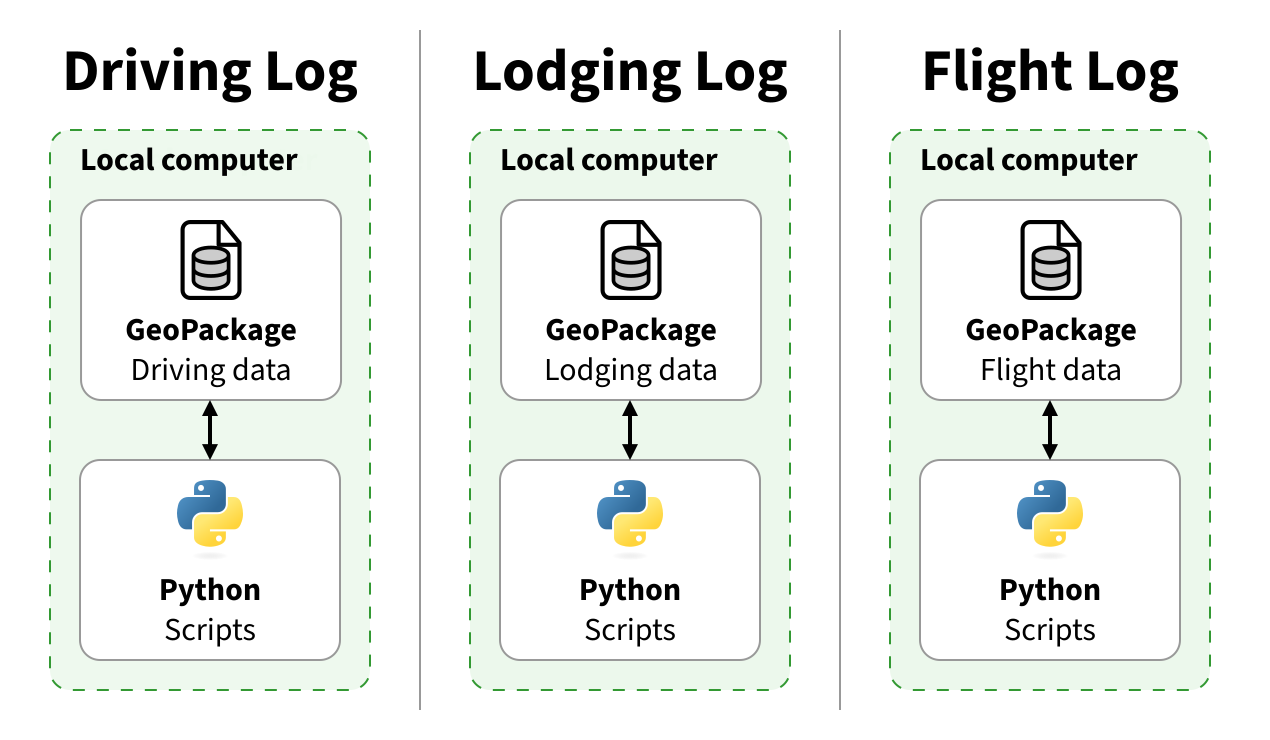
Travel Log Structure (After Changes, March 2026)
I’ve already stopped adding flights to the old Flight Historian website, so the local GeoPackage is now my source of truth for all of my flights. I expect to take down Flight Historian entirely within the next few months, so I can stop paying for a server I’m no longer using. (If I need to access it again for some reason, I can always run a Rails server locally). It’s served me well for the last thirteen years, but I’m excited about what the GeoPackage flight log will allow me to do going forward!
-
For privacy’s sake, my driving and lodging log source data had always been on my local machines. Driving log data would easily identify exactly where I live, and my lodging log data contains the homes of friends and family I’ve visited. I would sometimes post driving or lodging data online for things like Year in Travel, but they were always carefully curated as raster maps sufficiently zoomed out to avoid pinpointing these locations. ↩︎
-
I’d architected the site to allow me to convert it to a multi-user application. However, I originally used Great Circle Mapper to generate my maps, which was restricted to non-commercial use, meaning I wouldn’t be able to recoup my hosting costs for additional users. I decided to keep my instance of Flight Historian just for me, while making the source code available so anyone could host their own instance if they wanted to. ↩︎
-
Only airports had geometry in Flight Historian; great circle routes were calculated on the fly every time from the coordinates of the origin and destination airports. I tried to do something similar in QGIS with a virtual layer and a geometry generator, but it couldn’t handle great circle routes that crossed 180° longitude. Rather than trying to do some complicated antimeridian-splitting algorithm in a geometry generator, I decided to write a Python
update_routesmethod to generate great circle MultiLineStrings split at 180° from all of the airport pairs in theflightstable, and stored these geometries in theroutestable. ↩︎ -
Well, almost unique. When the Denver airport moved from the old Denver Stapleton to the current Denver International, the IATA code (DEN) and ICAO code (KDEN) moved along with it, and I’d flown out of both Denver airports. So I did have to go back and manually fix the mapping for these two. ↩︎
-
I can just AirDrop boarding passes to my MacBook, but I need to run the scripts on my Windows desktop too. ↩︎